The most dangerous thing in a factory is a TV screen that no one looks at.
We have all seen it: A 65-inch monitor mounted high on a wall, covered in complex pie charts, tiny numbers, and spinning dials. It looks impressive to investors, but the operators on the floor ignore it completely. Why? Because it is "Wallpaper Data." It is there, but it doesn't help them do their job.
An OEE dashboard is not just a report; it is a user interface for your factory. It needs to drive behavior.
Here are the 5 essential OEE dashboard types you should consider, ranked by their ability to actually improve production.
1. The "Andon" Scoreboard (The Motivator)
The Concept: Big, bold, simple.
This is the classic "Football Scoreboard" approach. It usually displays just three numbers:
-
Target Count (Where we should be).
-
Actual Count (Where we are).
-
Efficiency % (OEE).
Why it works:
It taps into basic human psychology. If the "Actual" number is green, the team feels good. If it turns red, they naturally speed up. It requires zero training to understand.
The Fabrico Take:
We support this view for overhead TVs. However, ensure the "Target" adjusts dynamically for breaks/changeovers, or operators will ignore it.
2. The "Timeline" (The Engineer's View)
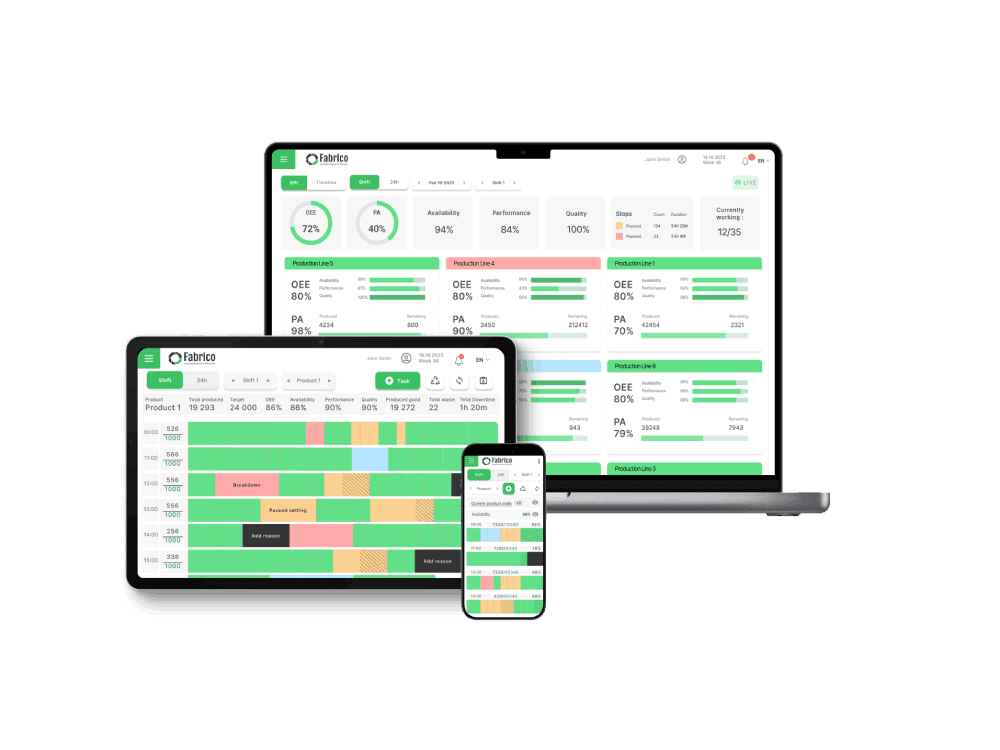
The Concept: A horizontal Gantt chart showing the last 8 hours.
Why it works:
This is the single most valuable view for identifying Micro-Stops. A bar chart hides short stops; a timeline exposes them as "fuzz" or gaps in the green bar. It allows an engineer to look at the screen and say, "We aren't breaking down, but we are stuttering every 5 minutes."
The Fabrico Advantage:
Fabrico allows you to click on any red sliver in the timeline and "Zoom-In" to see the video clip of that specific moment.
3. The "Pareto" Attack (The Huddle View)
The Concept: A sorted bar chart of the Top 5 Downtime Reasons for the current shift.
Why it works:
This is essential for the Daily Standup or Shift Handover. It forces the team to focus on the "Big Rock." It prevents the debate of "What went wrong?" and moves straight to "How do we fix the Labeler?"
The Fabrico Take:
Don't wait for the end of the shift. If one bar grows too fast (e.g., >20 mins), the Fabrico Agent should alert the Maintenance Lead immediately.
4. The "Plan vs. Actual" Hourly Tracker (The Pacing View)
The Concept: A chart showing hour-by-hour output.
Why it works:
It breaks the daunting 8-hour shift into manageable "sprints." If the team loses Hour 2, they can rally to win Hour 3. It prevents the "We'll make it up later" mentality that leads to missed quotas.
5. The "Action Center" (The Modern Standard)
The Concept: This is where Fabrico differs from generic BI tools (like PowerBI).
Most dashboards are Passive (Here is the data). The Action Center is Active.
It displays:
-
The OEE Score.
-
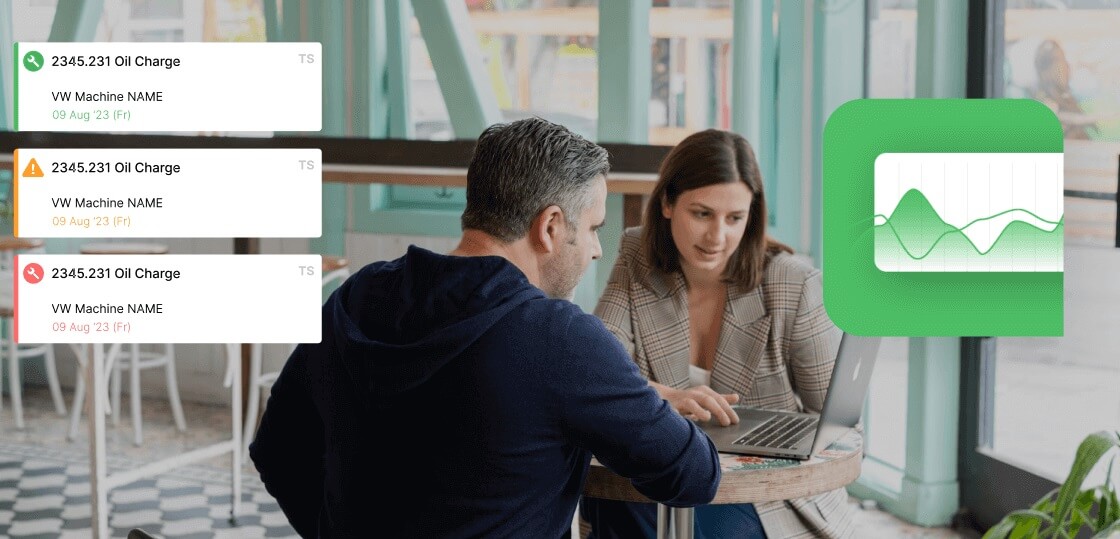
The Active Task: "Machine is Down - Operator: Please Scan QR Code."
-
The Maintenance Trigger: "Performance Low - Tech Dispatched to check heater bands."
Why it works:
It doesn't just inform; it instructs. It bridges the gap between "OEE" and "CMMS." It turns the screen into a member of the team.
Critique: Why "PowerBI on a TV" Fails
Many Plant Managers try to build their own OEE dashboards using PowerBI or Excel. This usually fails for three reasons:
-
Latency: The data is often 15 minutes (or 24 hours) old.
-
Font Size: They design it on a laptop. When put on a TV 20 feet away, the text is unreadable.
-
No Interactivity: You can't tap a TV screen to assign a downtime code.
Conclusion: Design for the User, Not the Boss
When choosing OEE software, don't look at the "Executive Reporting" first. Look at the "Operator HUD."
If the screen is cluttered, confusing, or ugly, your operators will ignore it. If it is clean, gamified, and actionable, they will own it.
Stop building wallpapers. Start building workflows. [See Fabrico's Dashboard Gallery].

 Login
Login
 Blog
Blog