Login
 Blog
Mobile Computer or Operator Terminal for Production Monitoring: What to Choose

In short: A mobile computer or operator terminal is where people see line status and log a stop reason in a few taps. Pick it by that job first, then by ruggedness and by how it connects.
- The usual setup is a fixed terminal (tablet, panel PC or kiosk) at the machine, plus a TV for status. A phone or handheld mobile computer is the second device, for people who move.
- Our rule of thumb: a stop reason should take about 3 taps and under 10 seconds. If it takes much more, people skip it or batch it at the end of the shift.
- Match ruggedness to the real spot: dust, water jets, cold, gloves, glare, drops.
- Test the Wi-Fi at the exact mount point, and ask what happens when the link drops.
What is an operator terminal for production monitoring?
It is the screen at the line where people meet the monitoring system.
The operator sees the status of the line, and tells the system what the machine cannot know: why it stopped, what product is running, how much was scrapped.
It goes by many names: shop floor terminal, MES terminal, operator panel, kiosk. The job is the same.
A machine HMI is different. It controls the machine, while a monitoring terminal only collects and shows production data.
"Mobile computer for production monitoring" can mean two things.
- A fixed terminal: a tablet in a mount, a panel PC or a kiosk that stays at the line.
- A mobile device: a phone or rugged handheld that a person carries between lines.
Many plants end up with both. The fixed one serves the operator, and the mobile one serves the supervisor, the technician and the person covering three lines.
Where you can, take production counts and run signals from the machine, through a PLC or an IoT sensor, so the numbers do not depend on someone typing. This is the core of good production monitoring software.
What the device must do
Write this list before you look at any hardware. It decides the device.
Show the status in one look
Running, stopped or changeover, plus target against produced, with nothing to scroll.
If the operator has to open a menu to see whether the line is down, the screen is wrong.
Take a stop reason fast
This is the main reason for the device. Everything else is secondary.
Big buttons, a short reason list, the most-used reasons one tap away, and no typing except the rare comment.
Take the rest of the shop floor inputs
- Product and changeover, so the right target is used.
- Scrap and rework quantities, ideally on a numeric keypad.
- A short comment, for the stops a list cannot explain.
- For lines without sensors, a way to start and stop production and enter produced items.
Know who is entering
A shared screen needs a quick login and a logout at the end of the shift. Otherwise the next shift's stops land on the wrong name.
How few taps should a stop reason take?
Our rule of thumb: about 3 taps and under 10 seconds. It is not a standard or a measured benchmark, so time it with your own operators.
A good path looks like this:
- Tap "add a stop" (or the stop is already open on screen).
- Tap the machine, if the line has more than one.
- Tap the reason.
Every extra tap costs you data. With a long path, people pick the first reason that fits, pick "other", or leave it for later.
A reason entered at the end of the shift is a guess. A reason never entered stays in the pile of unclassified downtime.
Two more rules keep the path short.
- Short lists. Show each machine only the reasons that fit it, grouped as planned and unplanned.
- A threshold for tiny stops. Do not ask about every 20-second jam. Count them from the machine signal and look for patterns later, as in our guide to micro-stops.
The reason groups feed OEE, so set them with care. Breaks and time with no production planned come out of planned production time.
Breakdowns, jams and changeovers stay in planned production time and lower availability. Decide once where planned cleaning sits, and keep it the same on every line.
Stops under your threshold are a performance loss, not an availability loss. No standard sets the number, so use the same one on lines you want to compare.
Where to put it
Put it where the stop happens, not where the desk is.
Placement rules
- Within arm's reach of the operator, at the spot where they stand when the line stops.
- In their line of sight, at a comfortable eye height. Not behind a guard or below the knee.
- Away from the spray and the heat, if you can. The best-protected screen is the one that is not in the splash zone.
- Out of glare. Check it at midday and under the night-shift lights.
Worked example
Example data, hypothetical round numbers. One line, one shift, 12 stops that need a reason.
- Terminal at the line: 10 seconds a stop, so 12 × 10 = 120 seconds, 2 minutes a shift.
- PC in the office, 3 minutes round trip: 12 × 3 = 36 minutes a shift.
Nobody walks 36 minutes a shift to log reasons. They batch them at the end, or they skip them.
So fix the distance to the screen first. No hardware brand makes up for it.
Ruggedness: the basics
Do not buy the most rugged device by default. Buy the one that fits the spot.
| Condition at the line | What to check |
|---|---|
| Dust | An enclosure that keeps dust out, so vents and ports do not clog. |
| Water and washdown | The IP rating. IP65 means dust-tight and protected against low-pressure water jets. Hot, high-pressure washdown needs a higher rating, such as IP69K, which is dust-tight and covers high-pressure, high-temperature water. |
| Cold or heat | The operating temperature range. Batteries in portable devices suffer most in the cold. |
| Gloves and wet hands | Test the touchscreen with the gloves your people really wear, and with a wet finger. |
| Glare | Screen brightness and an anti-glare finish, tested under your own lights. |
| Drops and vibration | A mount that holds firm, and a case that survives a fall onto concrete. |
| Cleaning | A sealed surface you can wipe. IP tests use water, so check resistance to your own cleaning chemicals with the maker. |
| Food zones | Your site rule on glass and hard plastics. A glass tablet screen may need a shatter-proof option or a spot outside the zone. |
| Explosive atmospheres | A device certified for your zone (ATEX or IECEx). This is a call for your safety lead, not a choice from a catalog. |
| Power | Power at the mount for a fixed device. Ask the maker how the battery copes with being plugged in all day. |
Read the IP rating closely. Many panel PCs carry IP65 on the front face only, so check what it covers, and whether it holds with the cables plugged in.
An ordinary tablet in a good mount, in a clean area, can be enough. The same tablet in a splash zone with no case may not last.
The best test is simple: put one device at the real spot for two weeks, and see what it looks like afterwards.
When is a mobile computer the right choice?
A mobile computer is a handheld device, often with a built-in barcode scanner, that a person carries through the plant. A work phone can do much of the same job.
It fits when the work moves with the person:
- One person covers several machines or lines.
- Supervisors and technicians need status and alerts away from the line.
- The task starts with a scan, such as a code on a machine or a material label.
It fits badly as the only device on a line with many stops. Someone must have it in hand when the stop happens, and the small screen is slow for long entries.
If you buy handhelds, also check that the battery lasts a full shift, that the scanner reads your labels, and where they charge between shifts.
Connectivity and IT
A terminal that cannot reach the system is a dead screen.
- Walk-test the Wi-Fi at the mount point. Metal machines and racks create dead spots that the office does not have.
- Use a wired connection for fixed terminals when you can run a cable. It removes a whole class of problems.
- Consider cellular where the site Wi-Fi is weak and IT cannot fix it quickly.
- Ask what happens when the link drops. Are entries held and sent later, or lost? How long? Pull the cable during a test and see.
- Keep the machine signal on its own path. Counts and run status should come from the PLC or sensor, not from the operator's screen.
- Lock shared devices to the app. Use kiosk mode where the device offers it, and name someone who owns updates.
Ask IT early. They will have rules for devices on the network, and it is better to hear them before you buy.
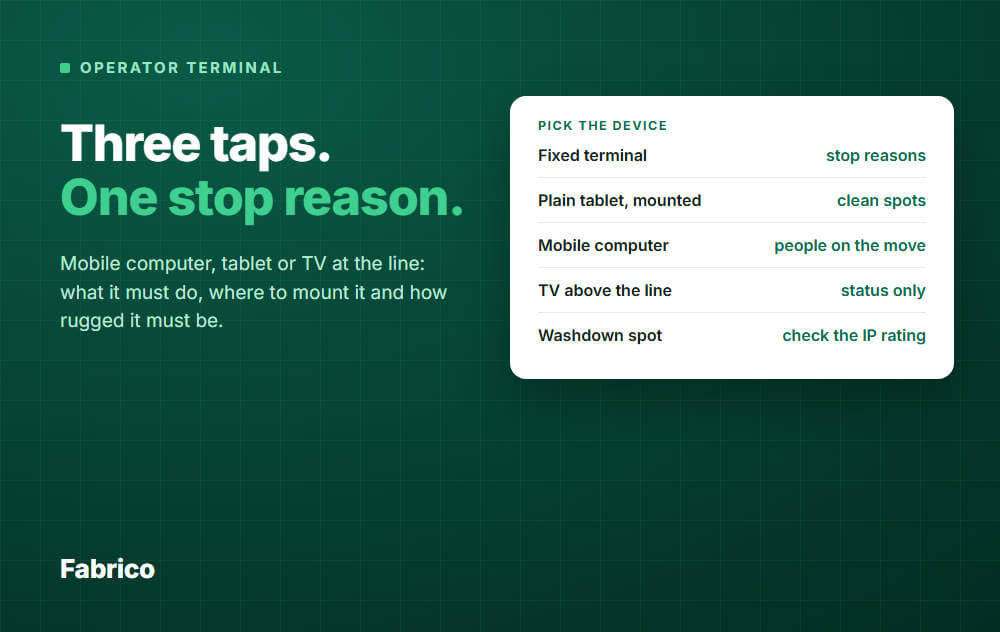
Terminal, phone or TV?
These are three different jobs. Many projects try to make one device do all three.
| Device | Best at | Weak at |
|---|---|---|
| Fixed terminal (tablet, panel PC, kiosk) | Operator input at the line: stop reasons, product, scrap | Reaching people who walk around |
| TV or large status screen | Status visible from a distance, to everyone | It has no input. It shows, it does not ask. |
| Phone or handheld | Supervisors, technicians and anyone covering several lines; alerts when a line goes down | Long entry sessions. A small screen is slow for many stops. |
The TV works as visual management, like an andon-style status board. It does not replace a place to enter a reason.
Common mistakes
- Choosing hardware before the job. Write the task list first, then pick the device.
- Mounting it for the engineer, not the operator. If the operator has to walk, the data suffers.
- Never testing the Wi-Fi at the spot. It worked in the meeting room.
- Over-buying ruggedness, or under-buying it where there is washdown.
- Forgetting the review. If nobody reads the reasons, operators stop entering them.
What good looks like
| Area | Weak | Good |
|---|---|---|
| Placement | At a desk, away from the line | At the line, within reach |
| Stop reason | Menus, typing, many steps | About 3 taps, logged during the stop |
| Status | Opened on request | On a TV and on the terminal home screen |
| Ruggedness | Same device everywhere | Chosen per spot, tested two weeks |
| Network | Assumed | Walk-tested, drop behaviour known |
| People on the move | Walk to a screen | Phone with alerts |
How Fabrico handles the operator device
Fabrico is a light MES in the cloud. It takes OEE and downtime from machine data (PLC, IoT sensor or camera) and adds the stop reason from the person at the line.
It runs on iOS and Android and in the browser, on tablets and phones. A panel PC or kiosk would use the browser, so test your model at the line before you buy.
- "The line is down" card. When the machine signal shows a stop, a card shows the downtime counter and quick actions: Add stoppage reason, Start changeover and Task.
- Two-step reason. The machine signal gives the start and length of the stop. The operator picks the machine, then a reason from a list agreed with your team.
- QR codes. An operator who looks after several machines can scan a machine's code to open it, with any phone camera.
- Manual mode for lines without sensors. Operators enter counts and stops on a tablet.
- Scrap by reason. Operators record scrap and rework by hand, with a reason.
- TV status screen. A screen by the line shows the live state, OEE and produced against target.
- Role-based permissions. You control who can do what in the app.
- Micro-stops. Stops of a few seconds are detected from the machine signal and listed apart from long stops.
- Alerts. Push, in-app and email notifications, with rules by role and shift, for people who are not at the screen.
What it does not do: Fabrico does not have an offline mode. It is a cloud platform, so it needs a connection where people use it.
So the Wi-Fi walk test above is a must, and a cable is the better choice for a fixed terminal.
This article names no device as approved by Fabrico. The mount, the case, the network and the model at each spot are your checks to make.
Request a demo or Contact us to see the line-down card and the reason picker on screen, and to ask about your own lines.
What people ask next
Is a TV enough for production monitoring?
For awareness, yes. For explaining losses, no.
A TV shows that the line is down. Without an input device, the reason is left to memory and the downtime stays unexplained.
See downtime tracking software for how systems capture the reason.
Tablet or panel PC at the machine?
Both work. The software and the spot decide.
A tablet in a mount is usually cheaper, quick to replace and easy to move. A panel PC is usually built in and fixed, and many are sealed.
Choose a sealed panel or a rugged tablet where you have washdown or heavy abuse. Choose a plain tablet where the spot is clean and you may move it.
Can operators use their own phones?
Sometimes. It is an IT and policy question more than a technical one.
Fabrico has iOS and Android apps, so a phone can do the job. But a personal phone in a wet or dusty area is at risk, and many sites do not allow it on the shop network, so ask IT first.
Do we need a terminal at every machine?
Not always. One per line works when one operator can reach it in a few steps, and long lines or several people need more.
The test is the walk: if people avoid the screen because it is far, move it or add one.
What if the line has no sensors?
Then the operator is also the data source for run time and output. Use a manual mode, with start and stop buttons, entry of produced items and quick buttons for the common reasons.
Short stops will mostly go unrecorded, and show up only as lost speed. A sensor takes that typing out of the job and catches them.
Can we use the machine HMI as the terminal?
Sometimes, but it is rarely the quick route. The HMI belongs to the machine control, so adding reason screens often means work by the machine builder or your controls engineer.
A separate terminal leaves the control system alone, and gives every machine the same screen.
Want to see stop entry in the app before you buy any hardware? Request a demo or Contact us.
Not sure which stops cost you most? Our field guide, why lines stop, shows how to put a cost on a stopped hour.
Latest from our blog